
Quick start
This page walks through the full path of a flow: network → offer → traffic source → link → rule → postback → check. Nothing to install or host.
What you need
Section titled “What you need”- A Telegfy account.
- Access to your affiliate network (AN) account where you can set a server-to-server (S2S) postback. The field is usually called “Postback URL”, “S2S postback” or “Callback”.
- The offer link from that network.
- An ad account or traffic source, if you want to send conversions back to the ad platform (step 5, optional).
-
Sign up.
Open
/registerand create an account. After you sign in you land on Overview (/dashboard).On Free: up to 20 active links, one conversion goal, and links expire after 30 days unless you set an expiry date.
-
Domain — optional.
Free has no custom domains: links use the service domain. For a production flow, connect your own subdomain on Pro. See Domains. You can skip this for a first test.
-
Add an affiliate network.
Open “Affiliate networks” (
/dashboard/offers/networks) and click “New network”.- Name — as shown in your network’s account.
- Subid parameter — the parameter name in which the network passes us the click id and expects it back in the postback. Default is
subid. If the network calls itclickid, enterclickid.
Save. The table now shows the subid parameter and a ready postback URL.
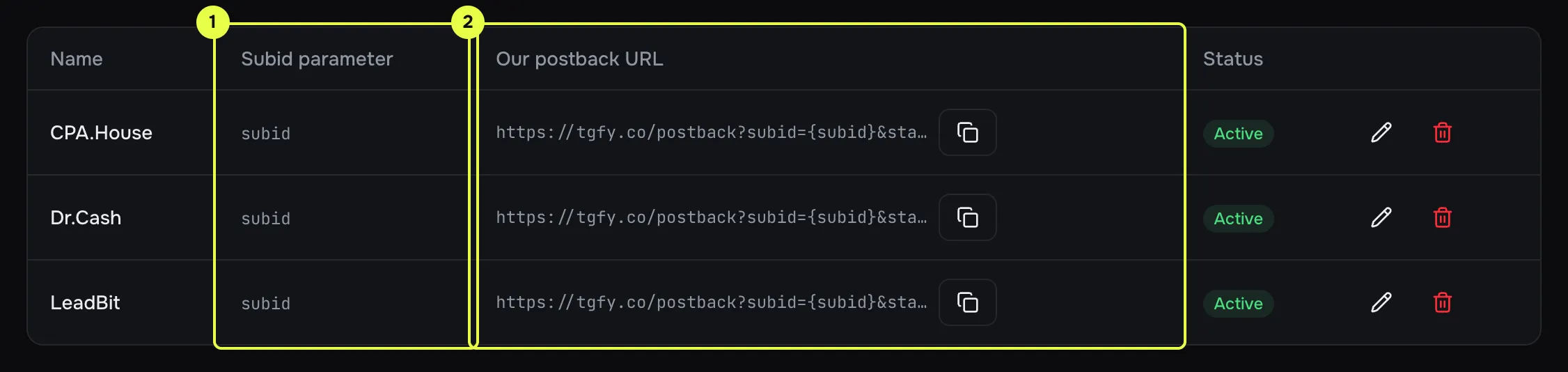
- Subid parameter: the name the network accepts and returns the click id under.
- Postback URL: the ready link to paste into the network. Copy it with the button.
-
Create an offer.
Open “Offers” (
/dashboard/offers) and click “New offer”.-
Name and Network — pick the network from step 3.
-
Offer URL — the link from the network’s account. Put
{{click_id}}where the network expects the click id:https://offer.example.com/?aff=42&subid={{click_id}} -
Countries, Payout and Currency — the payout from the network. It is used in reports when the network does not send an amount in the postback.
-
Status — Active.
An offer that is Active and Healthy takes part in rules.
-
-
Traffic source — only if you need outgoing postbacks.
If conversions must go back to an ad network, open “Traffic sources” (
/dashboard/offers/traffic-sources), click “New source” and enter that network’s postback URL. Skip this step if you only want to see conversions in Telegfy for now.More: Traffic sources and Outgoing postbacks.
-
Create a link.
Open “My Links” (
/dashboard/links) and click “Create Link”.- Destination URL — where the click goes if no rule matches. A good choice is the offer URL without parameters. Macros
{{...}}in the link’s own URL are a Pro feature. - Traffic source — pick the source from step 5, if you have one. The field appears when the workspace has an active source.
- Click “Create Link” and copy the short link
https://<domain>/<code>.
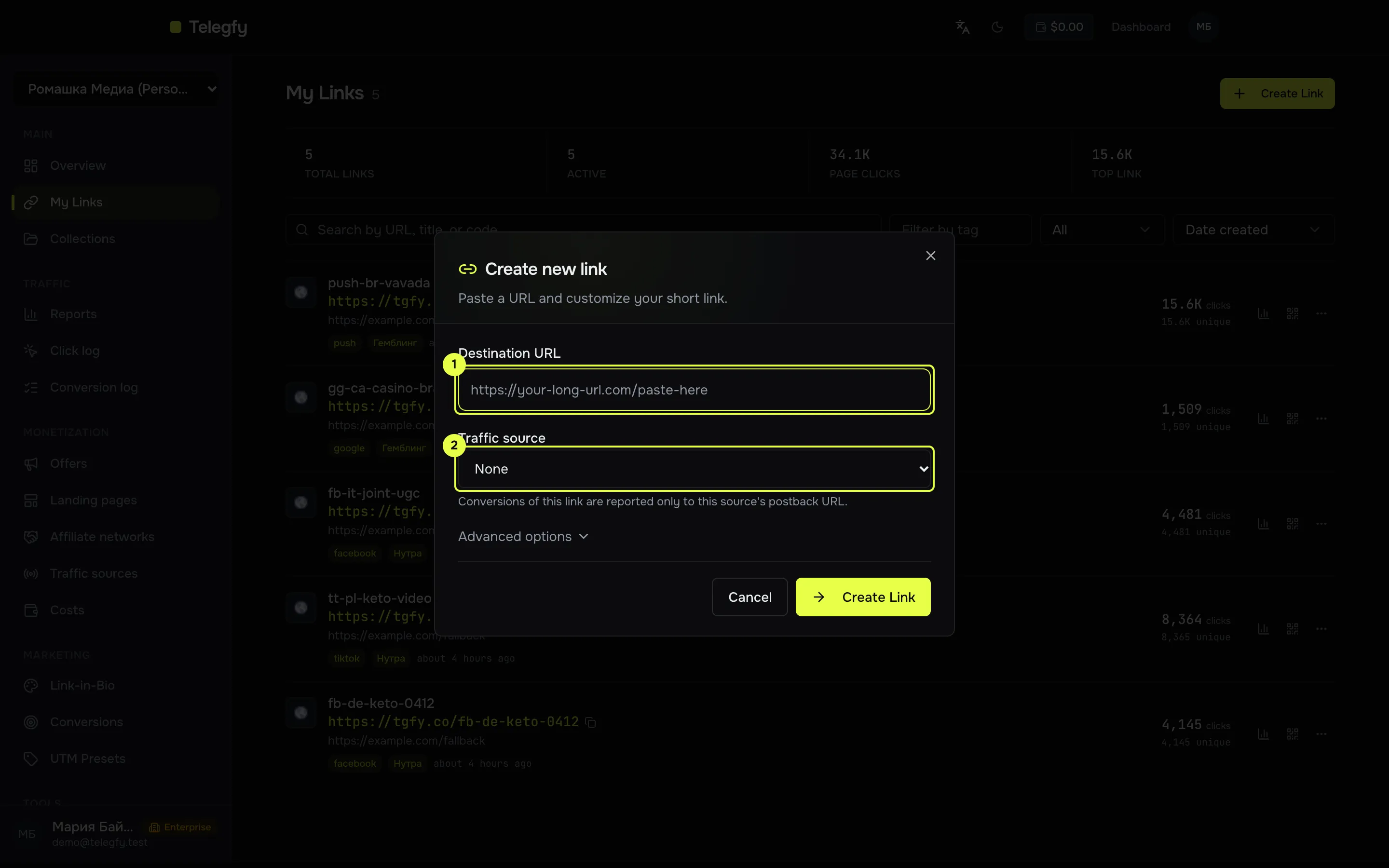
- Destination URL: the fallback address if no rule matches.
- Traffic source: ties the clicks of this link to a source for outgoing postbacks.
- Destination URL — where the click goes if no rule matches. A good choice is the offer URL without parameters. Macros
-
Attach the offer with a rule.
A link does not pick an offer by itself. A routing rule does that. In the link’s row open the “…” menu and choose “Routing rules”. Then click “Add Rule”.
- Rule type — Geo. Add no conditions: the rule matches all traffic.
- Flow type — Default.
- What happens on match — Landing + Offer. Add no landings: “No landings — traffic goes straight to the offer.”
- Offers — pick the offer from step 4.
- Save.
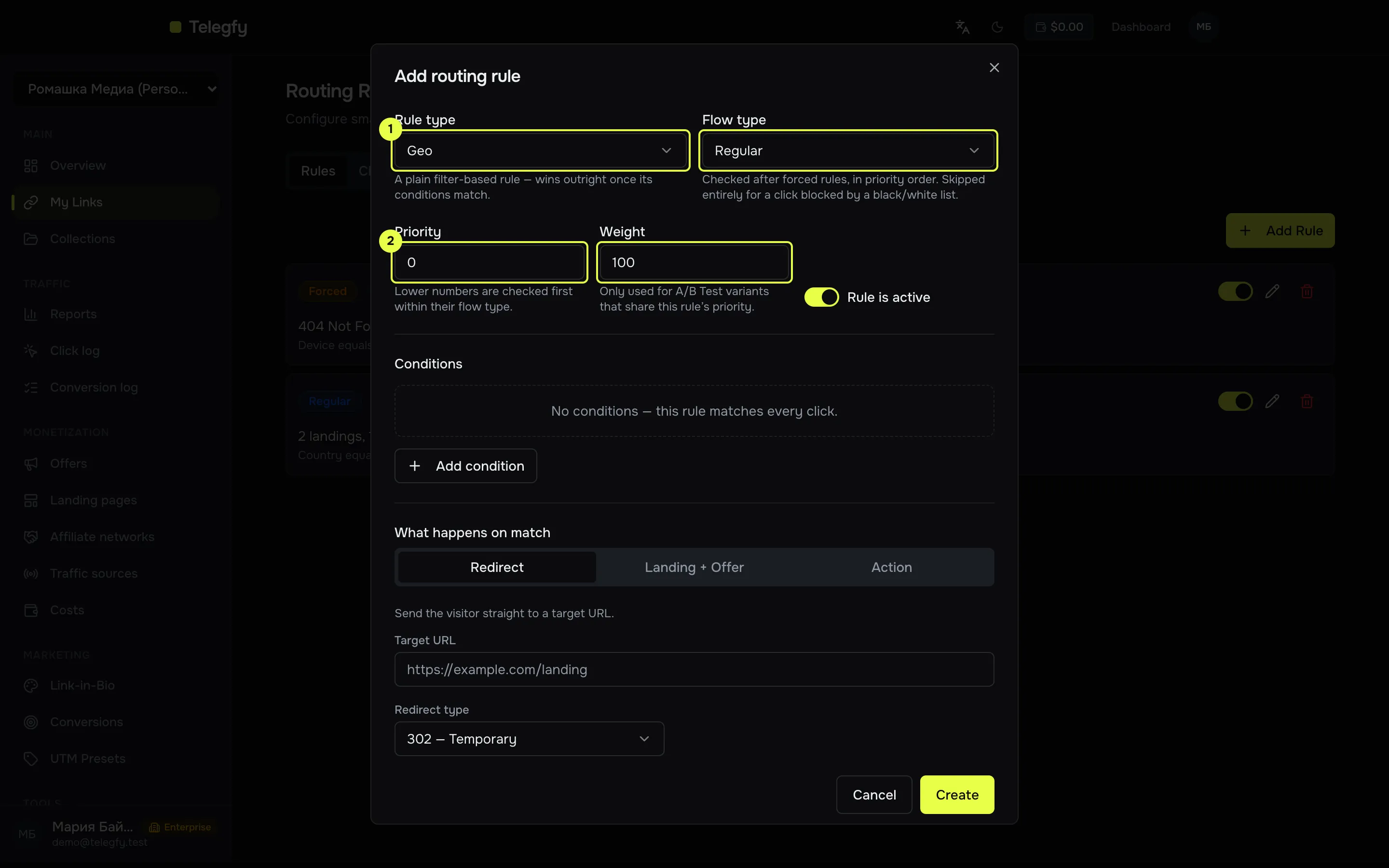
- Rule type and flow type.
- Priority and weight.
-
Paste the postback into the network.
Go back to “Affiliate networks”, open the network with the pencil icon and find “Our postback URL”. It looks like this:
https://<domain>/postback?subid={subid}&status={status}&payout={payout}¤cy={currency}&tid={transaction_id}&network_id=<network id>Paste it into the postback field of the network’s account.
The curly-brace parts are the network’s own macros. The network fills them in. If the network names its macros differently, replace only the right-hand side, for example
status={state}. Do not change the names on the left of=(subid,status,payout,currency,tid): they are our parameters. The macro insidesubid={...}must match the “Subid parameter” from step 3.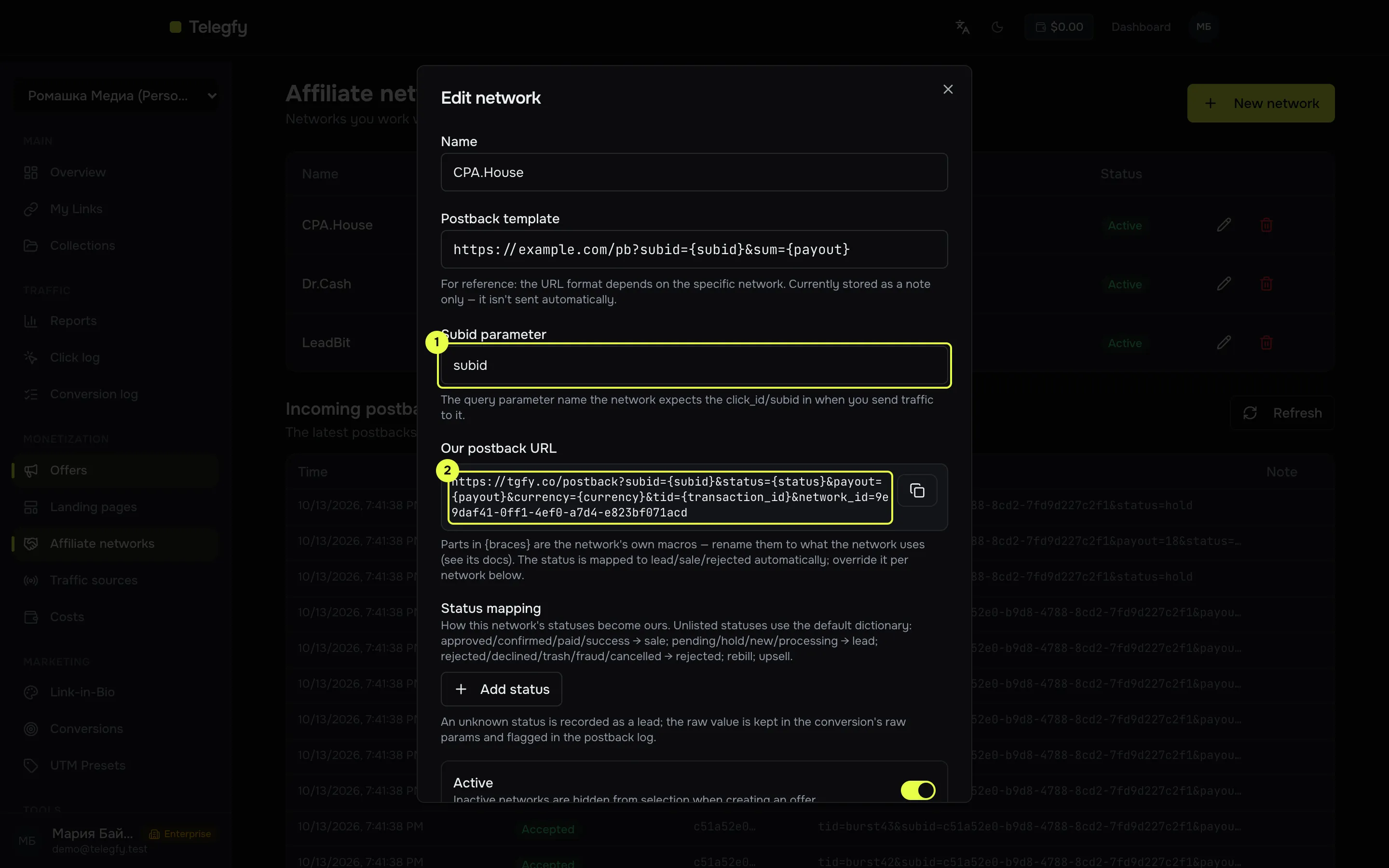
- Subid parameter: must match the name the network returns.
- Our postback URL: paste it into the network.
For status mapping and connecting any network, see Any network via S2S.
-
Test with a manual conversion.
Until the network sends a real postback, test by hand. Take the click id from the address you were redirected to after opening the short link. It is the value of the
subidparameter.Окно терминала curl "https://<domain>/postback?subid=<click_id>&status=sale&payout=10¤cy=USD&tid=test-1"A successful response looks like this:
{"data":{"status":"ok","result":"accepted","conversionId":"..."}}The test conversion appears in your statistics. Use a clear
tid, such astest-1, so you can recognise it later. Repeating the request with the sametidreturnsduplicateand creates no second record. -
Check the result.
- Inbound postbacks log. At the bottom of “Affiliate networks” you see the last 30 postbacks and their results. You need
accepted. For other results, see Troubleshooting. - Conversion log (
/dashboard/reports/conversions, Pro only). A row with status “Sale”, amount 10 and TIDtest-1. - My Links. The click counter of the link has gone up.
- Inbound postbacks log. At the bottom of “Affiliate networks” you see the last 30 postbacks and their results. You need
What next
Section titled “What next”- Core concepts: how click, link, rule, offer and conversion connect.
- Routing rules and flows: landings, A/B tests, rotation and conditions.
- Conversion statuses: what to do when a network sends its own statuses.
- Troubleshooting: if a conversion was not recorded.