
Facebook Ads
The Meta (Facebook and Instagram) setup has three parts. The first is a Telegfy link in the ad. The second is Meta macros in sub_id values, so you can see which ad brought the click. The third is sending conversions back to Meta through the Conversions API.
How it works
Section titled “How it works”- A person sees the ad and clicks it. Meta adds an
fbclidparameter to the link address. - The Telegfy link records the click, the
fbclidand thesub_id_Nlabels. - The visitor reaches the offer. The conversion comes to Telegfy from the network.
- Telegfy sends the conversion to Meta through CAPI, if the integration is set up.
The link in Telegfy
Section titled “The link in Telegfy”Create the link under “My Links” → “Create Link”. If you have a traffic source (Facebook Ads), pick it in the “Traffic source” field.
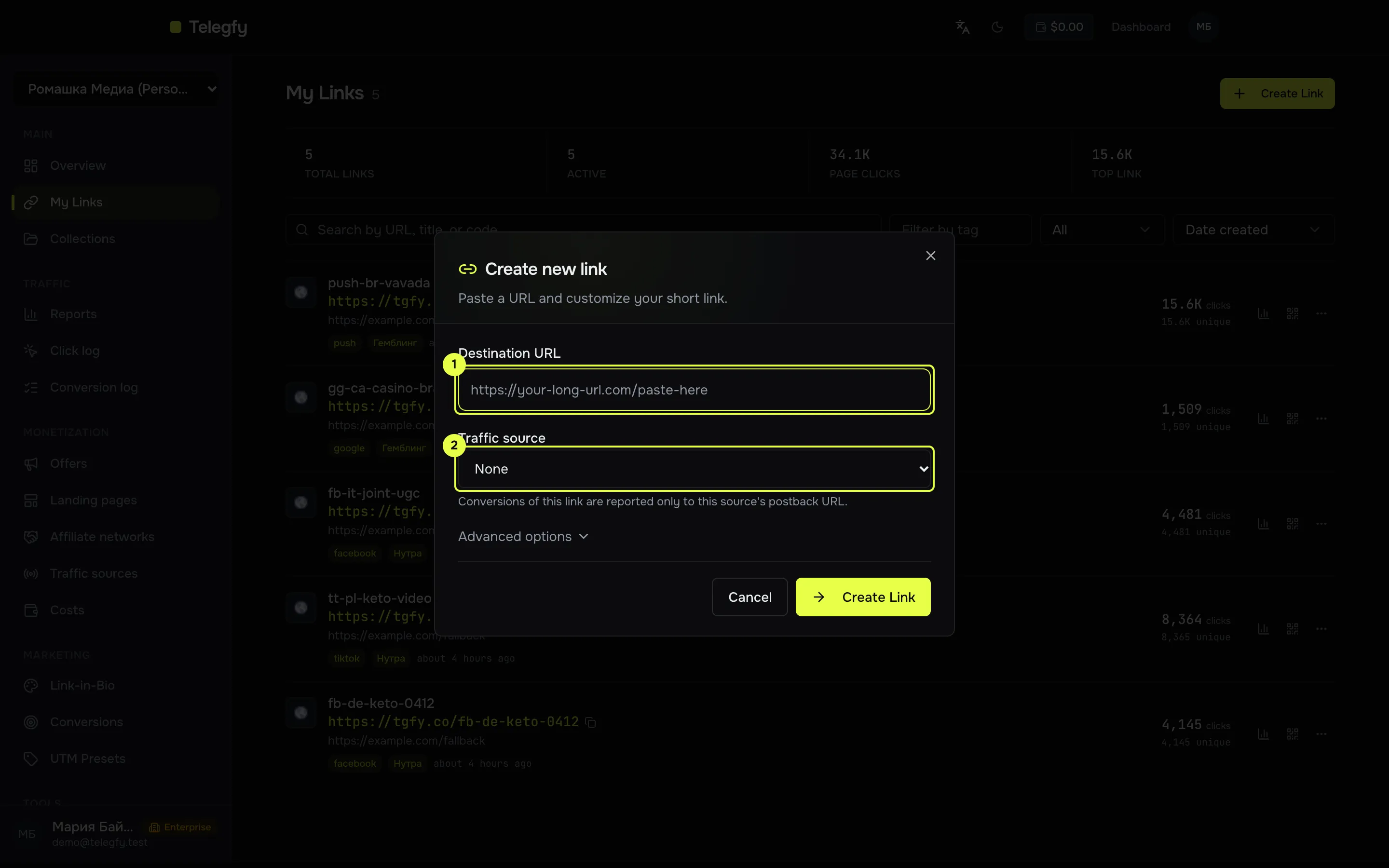
- Destination URL: the offer or landing address.
- Traffic source: the outgoing postbacks of this link go to the selected source.
-
Create a link in Telegfy.
Open “My Links”, create a link to the offer or landing, and copy the short address
https://<domain>/<code>. This becomes the destination address in the ad. -
Put the address in the ad.
In Ads Manager, enter the short link as the website URL of the ad.
-
Add URL parameters.
In the Destination or Tracking block of the ad, there is a field called “URL parameters”. Enter:
sub_id_1={{ad.id}}&sub_id_2={{adset.id}}&sub_id_3={{campaign.id}}&sub_id_4={{placement}}&sub_id_5={{site_source_name}}The double braces here are Meta macros. Meta fills them in when the ad is shown, and Telegfy stores them in
sub_id_1…sub_id_5. These values then appear in the reports. -
Set up CAPI (optional).
“CAPI integrations” → “New integration” → Meta. Enter the Pixel ID and the Access Token. In the status mapping, set
lead→Leadandsale→Purchase. For more, see Conversion API. -
Check.
Open the link from the ad in a browser. In the click log (Pro) find the click and check that
sub_id_1is filled in. Send a test conversion through the network’s postback.
Meta macros
Section titled “Meta macros”| Macro | What is filled in |
|---|---|
{{ad.id}} |
The ad’s ID |
{{adset.id}} |
The ad set’s ID |
{{campaign.id}} |
The campaign’s ID |
{{ad.name}}, {{adset.name}}, {{campaign.name}} |
The names of the ad, ad set and campaign |
{{placement}} |
The placement, for example Facebook Feed or Instagram Stories |
{{site_source_name}} |
The app: fb, ig, msg, an |
Use IDs rather than names. A name macro fills in the name the object had when it was first published. If you rename a campaign, the URL keeps the old name.
fbclid and fbc
Section titled “fbclid and fbc”Meta adds fbclid to the address itself, so no separate macro is needed. Telegfy stores it on the click. For CAPI, an fbc value is built from it in the format fb.1.<time in ms>.<fbclid>. The value is case-sensitive, so do not alter it.
Common mistakes
Section titled “Common mistakes”- The labels do not appear in reports. Check that the Meta macros are in the ad’s “URL parameters” field. Meta macros do not work in an offer address in Telegfy: there the Telegfy macros apply, for example
{{click_id}}. - Names in labels do not match the current ones. Use IDs.
- CAPI sends no events. Check the status mapping and the token. The integration has not been tested against the live API, see Conversion API.
- Meta rejects events. Events older than 7 days are not accepted. Do not send old conversions through CAPI.
Read next
Section titled “Read next”- Conversion API: setting up Meta and its limits.
- Campaigns and links: how sub_ids work.
- Any network via S2S: connecting a network that sends you the traffic from Facebook.