
Notification channels
A channel is where an alert rule sends its notification. Create a channel once, then attach it to any rule. Tab: Automation → Channels.
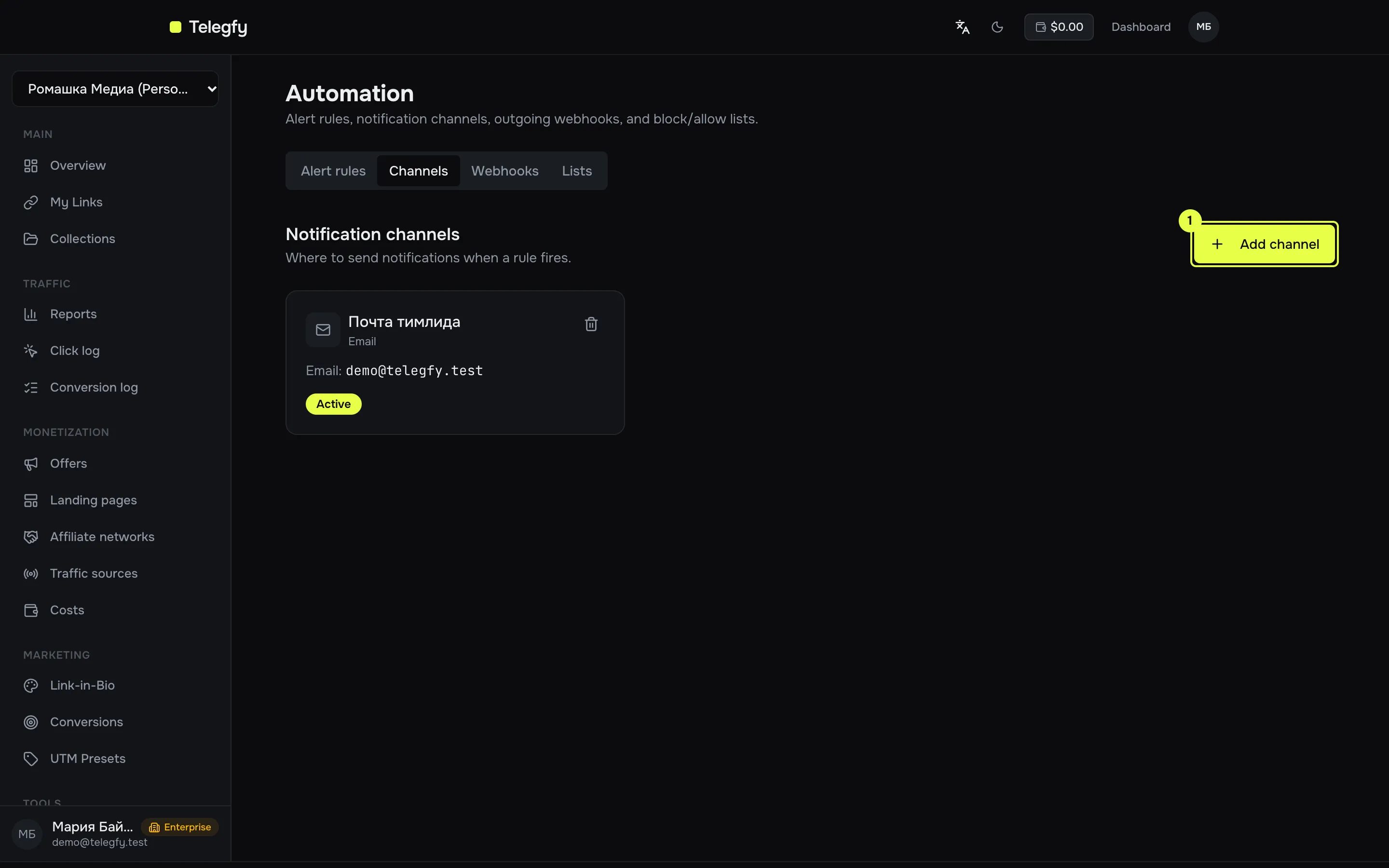
- Add channel — a form with the channel type, a name and fields that depend on the type.
Channel types
Section titled “Channel types”Telegram
Section titled “Telegram”| Field | What to enter |
|---|---|
| Bot token | Token issued by @BotFather. |
| Chat ID | ID of a private chat or group, for example -1001234567890. |
To find the Chat ID, message @userinfobot, or call getUpdates on your bot after a first message in the chat. The bot must be a member of the group, or messages will not arrive.
Webhook URL — the address of an Incoming Webhook. Create it in your Slack app settings and paste it here.
Email — the address that receives the message. Subject: Alert: <rule name>.
Webhook
Section titled “Webhook”URL — your server’s address. The system generates the signing secret when the channel is created. It is shown once, in the creation dialog, with a copy button. Save it right away. It is not shown again; if it is lost, create the channel again.
The request to your URL:
POST,Content-Type: application/json;- headers
X-Webhook-Event: alert_firedandX-Webhook-Signature; - body
{"event":"alert_fired","data":{...}}, wheredatais an object with the firing details: rule, metric, value, sample, breakdown, action and time.
The signature is HMAC-SHA256 of the raw request body with your secret, as hex. This is the same scheme as outgoing webhooks: compute it over the raw body, not over JSON you re-serialized.
What the list shows
Section titled “What the list shows”The list shows type, name, chat ID for Telegram, email or URL for webhooks, and status. Secrets (bot token, Slack URL, webhook secret) are stored encrypted and never displayed in the list.
Channels cannot be edited, and there is no “send test” button. To change a channel, delete it and create a new one.
Delivery
Section titled “Delivery”- Notifications are queued and sent by a background job every minute.
- Request timeout: 5 seconds.
- If delivery fails, retries follow after 1, 5 and 15 minutes. Up to 4 attempts in total.
Checking that a channel works
Section titled “Checking that a channel works”- Create the channel.
- Create a rule that will certainly fire, for example “clicks greater than 0 over 1 hour”, minimum sample 1, cooldown 5 minutes.
- Wait up to 5 minutes: rules are checked every 5 minutes.
- Delete the test rule.
Access
Section titled “Access”Owners, admins and editors create and delete channels. Viewers cannot change them.
/api/v1/alerts/channels — user session (JWT) only. API keys are not allowed.